Others
OBS Streaming Guide
2025-05-26 14:3843483
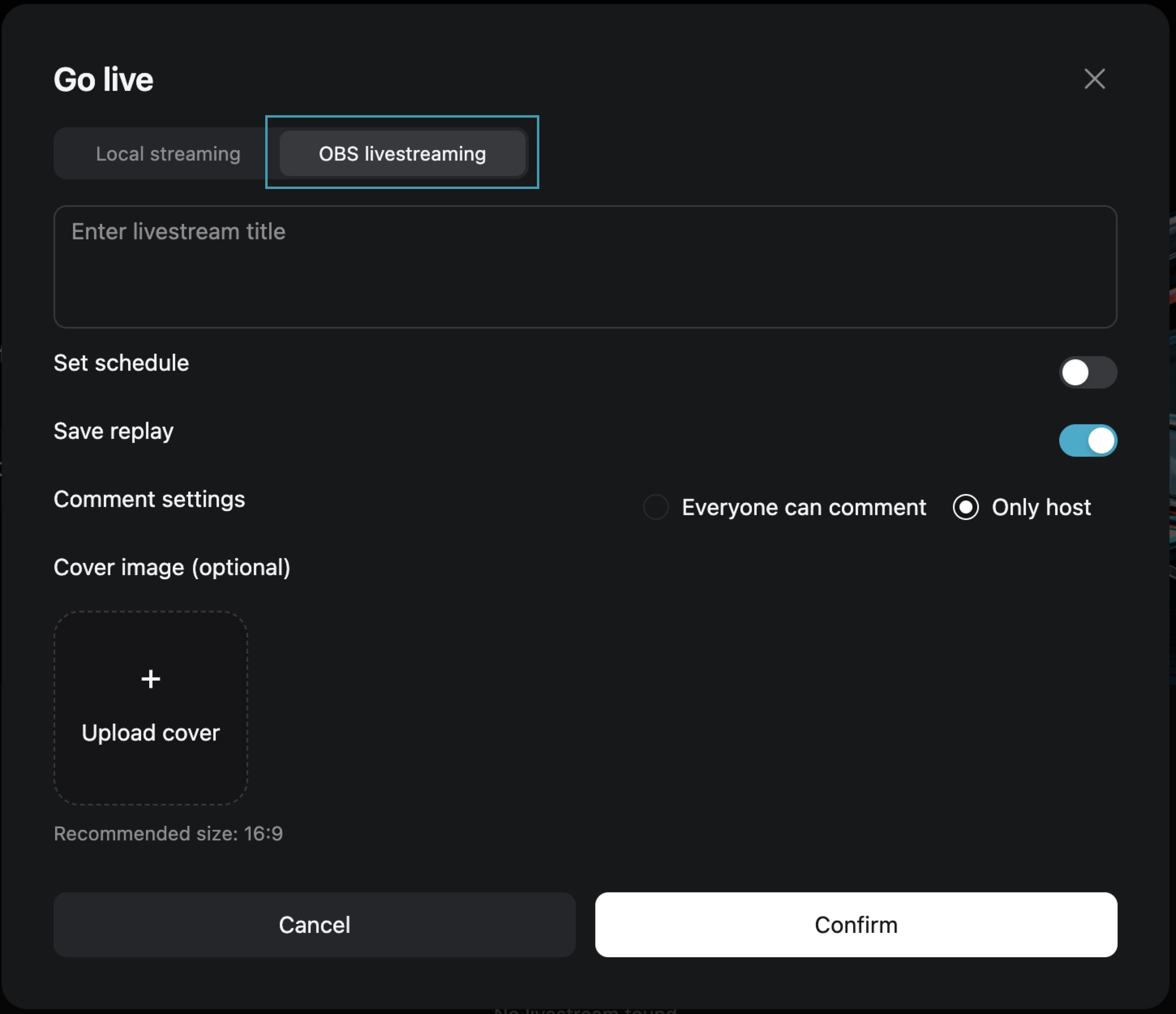
Step One: Choose [OBS Streaming Live]
After filling in the live broadcast information, click [Confirm] to enter the live preview page.
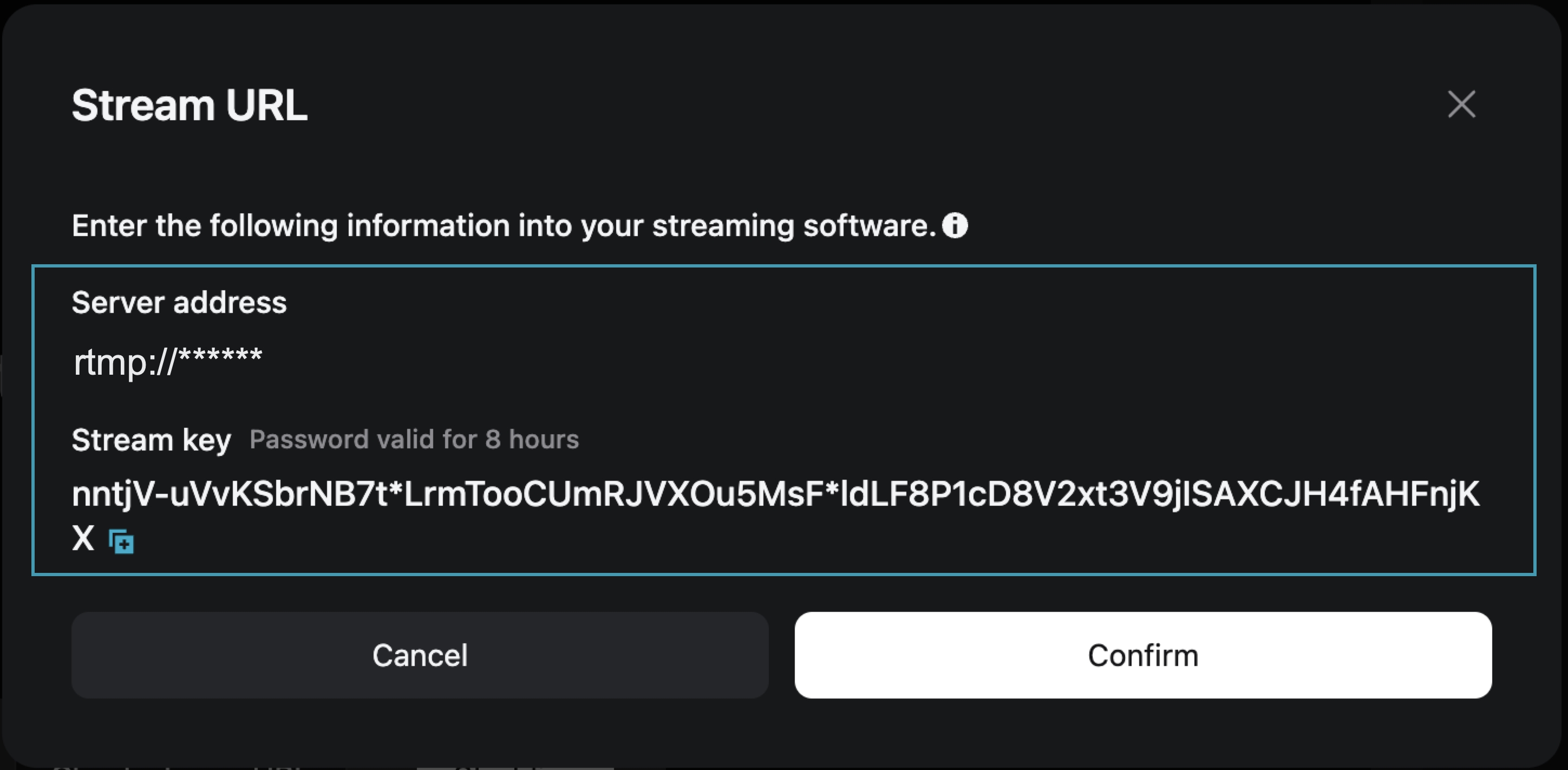
Step Two: On the live preview page, obtain the [Stream Address] and [Stream Key]
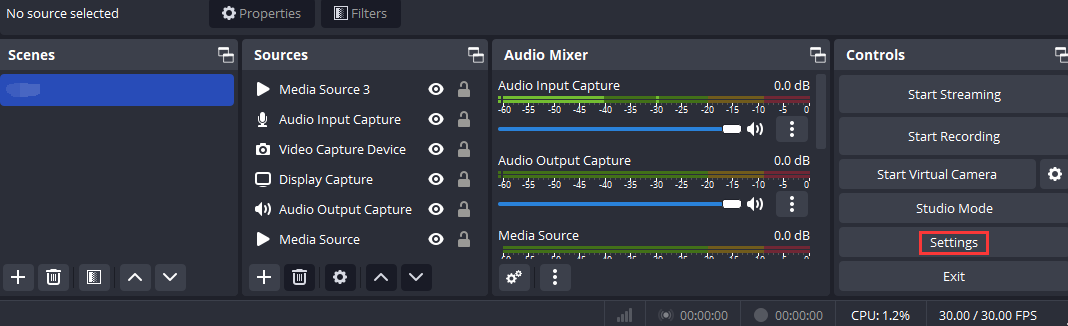
Step Three: Open OBS and access the settings page
Open OBS, and you can access the settings interface by clicking on the Settings button in the bottom toolbar control.
Step Four: Configure OBS Stream Settings
1. Click [Stream] to enter the stream settings tab, and select "Custom Streaming Server" as the service type.
2. Enter the obtained "Server Address" and "Stream Key" into the Server and Bearer Token fields.
Server: Corresponds to "Server Address"
Bearer Token: Corresponds to "Stream Key"
3. Save the settings.

Step Five: Configure Output Parameters
Output Mode: Select “Advanced”
Rescale Output: Select 1280*720
Profile: Select baseline

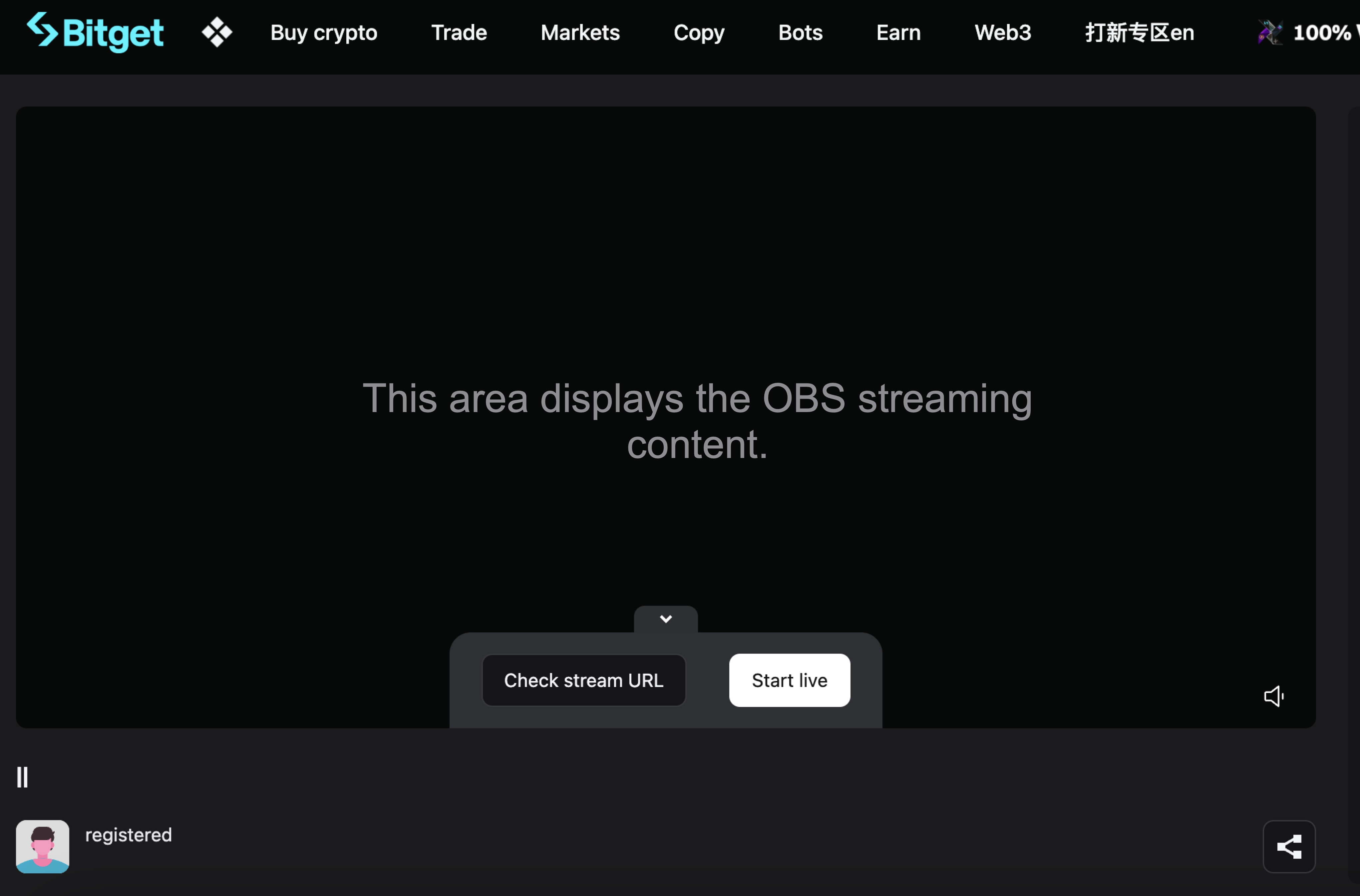
Step Six: Return to the Bitget Live Preview Page
At this point, the live preview page will display your OBS broadcast content. Click [Start Live] to begin your live broadcast on Bitget.
Join Bitget, the World's Leading Crypto Exchange and Web3 Company
Share